941 - Employer's Quarterly Federal Tax Return
Employers are required to file the quarterly 941 to report taxes, social security and medicare withholdings and pay employer portions of these taxes.
If this is the first time you've run tax forms, you'll also be prompted to complete the setup process for Electronic Filing.
Run a Quarterly 941
-
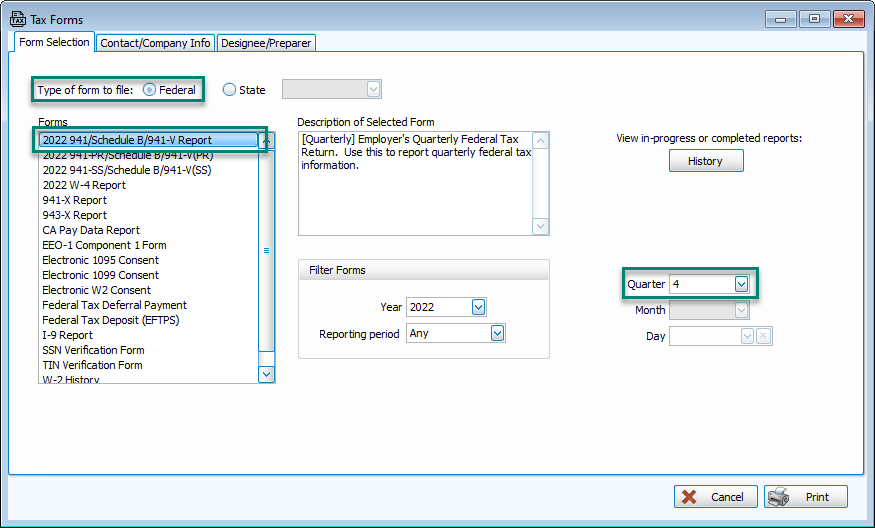
Navigate to Electronic Filing to open the Tax Forms screen.

-
Leave Federal forms selected and choose the 941/Schedule B from the list. Select the Quarter from the drop down in the lower right.
-
Click Print.
-
Verify the amount of the quarterly deposit.
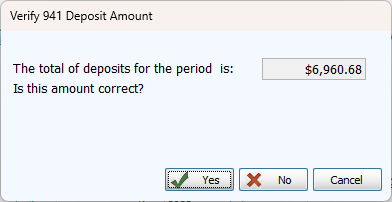
Note: If there are fields required for electronic filing that have not been filled out in Data Setup, you may get an alert that these must be filled in to continue. These are highlighted in Electronic Filing Setup instruction.
-
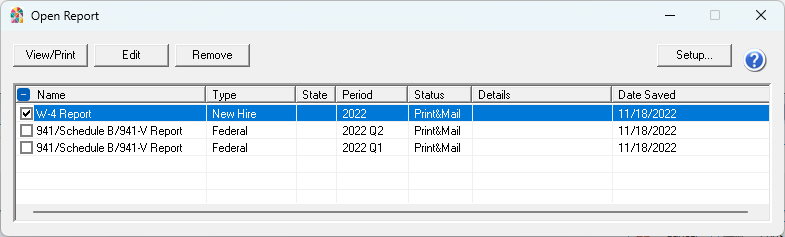
The status bar at the top of the window will indicate progress. You can Save or Print an in-progress form. Saved forms are located in
 on the Tax Forms screen.
-
Fields with a light blue background can be edited. Fields in Red are not auto-completed and must be filled in to continue.
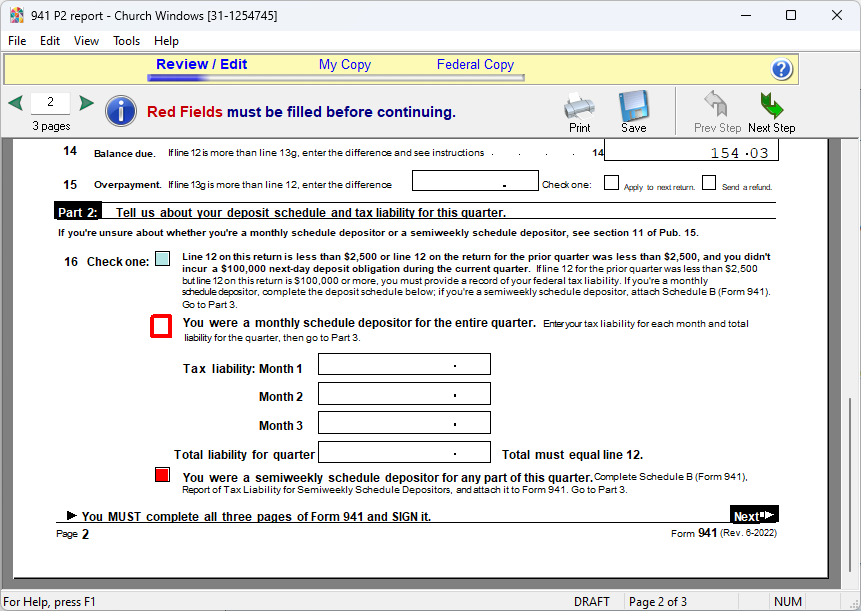
Once you have filled required fields and reviewed the form, click Next Step to continue.
-
Confirm that you have reviewed the form.
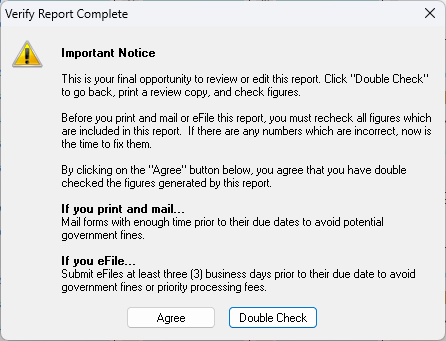
-
The status bar will continue to My Copy.

Click the Print button to create a copy of the filing for your records.
-
Click Next Step. Indicate whether you are going to eFile through Aatrix or whether you are going to print and mail the form.
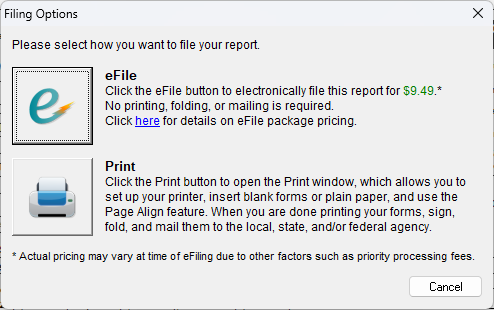
-
Completed forms save to Tax Form History, where you can review previously run reports, edit in progress forms, or print a copy.